

Key Takeaways
- Back up your old phone before starting any transfer to prevent permanent data loss.
- Review app permissions on your new phone rather than accepting defaults blindly.
- Sign out of accounts on the old device after the transfer is complete.
- Factory reset your old phone before selling, trading in, or recycling it.
- Strong, unique passwords and two-factor authentication should be set up from day one.
What you will need
Why This Setup Process Matters
Getting a new smartphone feels exciting, but the transition period is when most data loss and privacy gaps occur. Rushed setups lead to missing contacts, broken app logins, and default permissions that share more than you'd knowingly choose. Taking a structured approach - one that prioritizes backup, verification, and privacy - ensures your new phone works for you rather than against you.
This process applies whether you're moving between two Android phones, two iPhones, or switching platforms entirely. Cross-platform moves (Android to iPhone or vice versa) require a few extra steps, particularly around messaging history and app purchases, but the core framework remains the same.
What you will need
Cloud backup service (Google One or iCloud)
Stores a full backup of your contacts, photos, apps, and settings that can be restored to your new device.
USB transfer cable
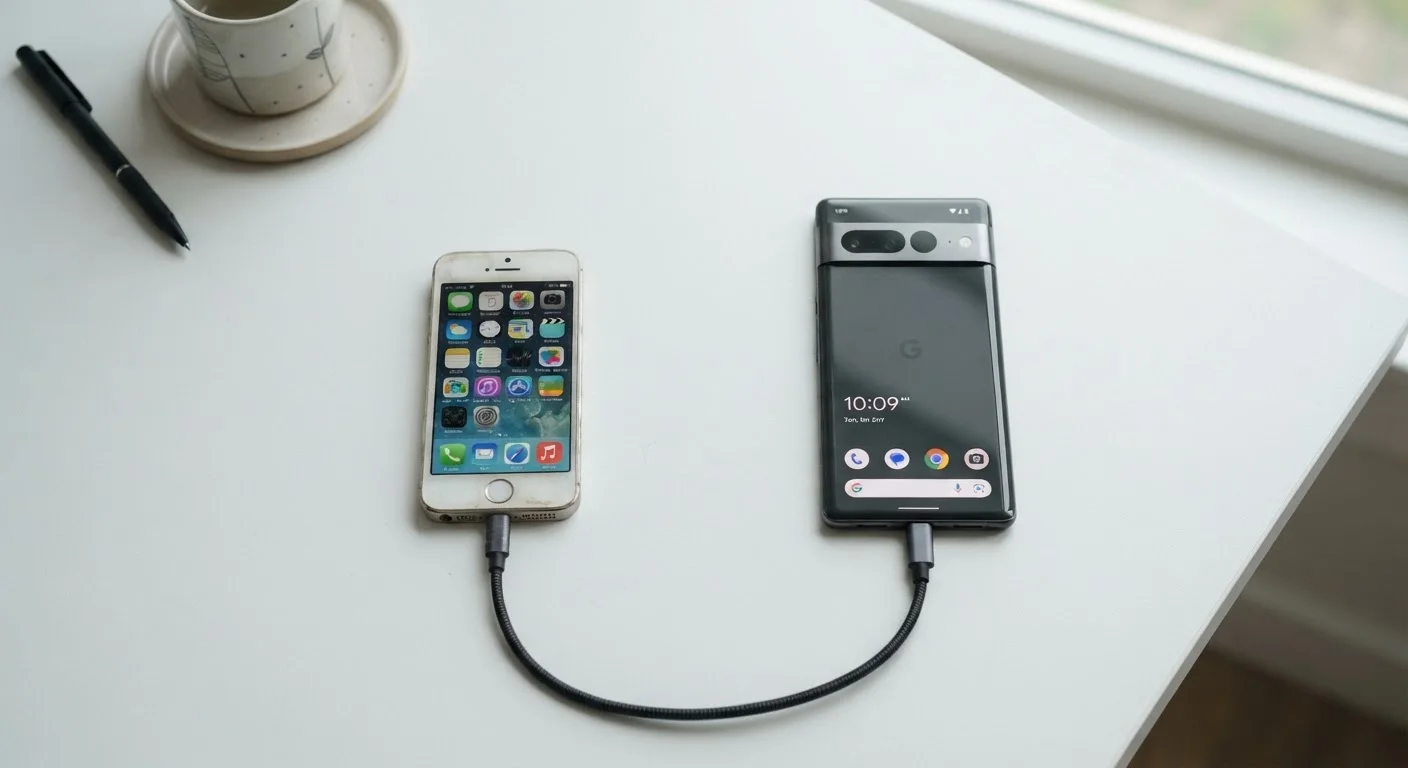
Enables direct device-to-device data migration, often faster and more reliable than wireless transfer for large libraries.
Password manager app
Securely stores and syncs login credentials so you don't lose access to accounts during the transition.
Step-by-Step: Making the Switch
Follow these steps in order. Skipping ahead - especially before completing a verified backup - is the most common source of permanent data loss during a phone transfer.
Back up your old phone completely
Before touching your new device, create a fresh backup of your old phone. On Android, go to Settings > System > Backup and confirm that Google Backup is enabled and has run recently. On iPhone, go to Settings > [Your Name] > iCloud > iCloud Backup and tap Back Up Now. Wait until the backup finishes - this typically takes a few minutes on a fast Wi-Fi connection.
If you store a large photo library, confirm your photos are also syncing to Google Photos or iCloud Photos separately, as some backup plans have storage limits.
Power on your new phone and start the setup wizard
Turn on your new phone and follow the initial setup prompts. When asked how you want to transfer data, choose Restore from backup (iPhone) or Copy data from another device (Android). Both platforms have built-in migration tools - iPhone's Quick Start and Android's data-transfer wizard - that walk you through the process step by step.
Connect your devices with a cable if prompted; this speeds up the transfer and reduces the chance of interruption.
Verify that your data transferred correctly
Once setup completes, spot-check your new phone before treating the migration as done. Confirm your contacts, text message history, photos, and key apps are all present. Open two or three apps you use daily and verify they're functional. Check that your calendar events and notes are visible.
If anything is missing, you can restore specific data from your cloud backup or sync it manually before moving on.
Audit and tighten app permissions
This step is often skipped, but it's one of the most important for privacy. On Android, navigate to Settings > Privacy > Permission Manager. On iPhone, go to Settings > Privacy & Security. Review which apps have access to your location, microphone, camera, and contacts.
Apply the principle of least privilege: grant only the permissions each app genuinely needs to function. For location access, consider changing settings to While Using rather than Always for apps that don't require constant tracking.
Set up strong authentication on your new device
Enable a strong screen lock - a six-digit PIN at minimum, or a longer alphanumeric passcode for better security. Set up biometric authentication (fingerprint or face recognition) as a convenient secondary option. Then, confirm that two-factor authentication (2FA) is active on your key accounts: email, financial apps, and your phone's primary account (Google or Apple ID).
If you use an authenticator app for 2FA codes, transfer it to your new phone before signing out of the old one, or you may be locked out of accounts.
Sign out of accounts and factory reset your old phone
Once you've confirmed everything is working on your new phone, sign out of all accounts on the old device. On iPhone, go to Settings > [Your Name] > Sign Out. On Android, go to Settings > Accounts and remove each account individually. Then perform a factory reset: Settings > General > Transfer or Reset iPhone > Erase All Content (iPhone) or Settings > System > Reset > Factory Reset (Android).
This removes your personal data from the device before you sell, trade in, or recycle it.
Treat Setup Day as a Privacy Audit
Switching phones is one of the best natural opportunities to declutter your digital life. Delete apps you no longer use, revoke permissions you don't recall granting, and confirm your account recovery options are current. The few extra minutes invested now can prevent significant headaches later.
After Setup: Ongoing Privacy Habits
The setup process is a starting point, not the finish line. Once your new phone is running, build a few habits that protect your data over time.
- Review permissions periodically. App updates can silently request new permissions. Check your permission settings every few months.
- Keep your OS updated. Operating system updates frequently include security patches that address newly discovered vulnerabilities.
- Use a password manager consistently. Reusing passwords across accounts is one of the most common ways personal data gets compromised after a breach.
- Audit cloud storage usage. Over time, cloud backups can fill up. Regularly review what's stored and remove files you no longer need.
If you're integrating your phone into a connected home setup, see our practical guide to setting up a smart home - your smartphone often serves as the control hub for smart home devices, and the privacy decisions you make during phone setup carry over to those integrations. You may also want to review the hidden costs and trade-offs behind connected devices before expanding your setup.
Don't Rush the Authenticator App Transfer
If you rely on an authenticator app for two-factor authentication, transferring it incorrectly - or forgetting to transfer it at all - can lock you out of critical accounts. Check your authenticator app's documentation for its specific transfer or export process and complete it before wiping your old device.
Factory Reset Before Letting Go of Your Old Phone
A signed-out device is not the same as a wiped device. Residual data, cached credentials, and locally stored files can remain accessible. Always complete a factory reset through the official settings menu - not just a simple sign-out - before your old phone changes hands. This applies whether you're trading it in, selling it privately, or donating it.